Chromebook buying guide for work, school, and everyday use
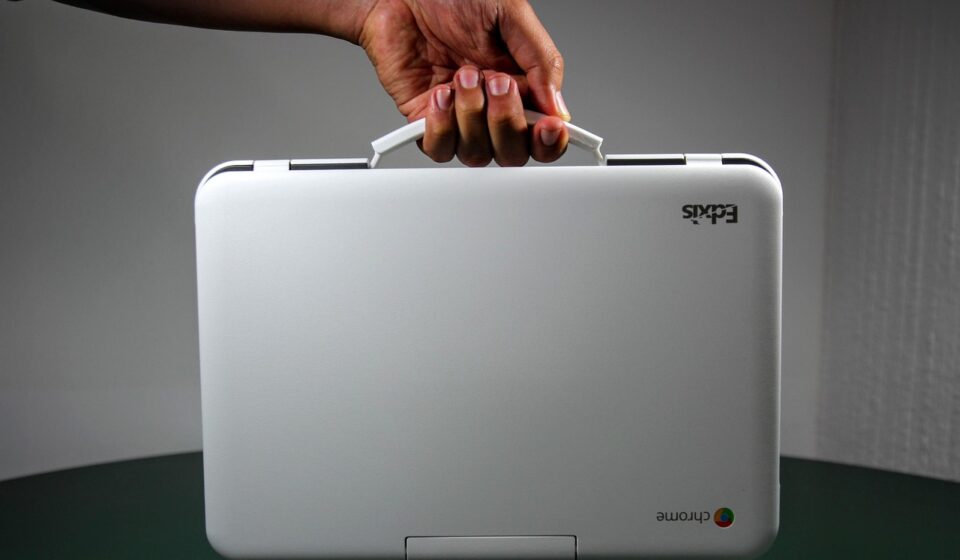
Before comparing prices, decide whether most of your work will happen in a browser or a cloud-connected app. If the answer is yes, a Chromebook can be a simple, secure, low-maintenance laptop for schoolwork, writing, video calls, streaming, light photo edits, admin tasks, and travel. If you need full desktop Windows or macOS applications, specialist creative tools, or high-end local gaming, it may not be the right primary machine.
The best Chromebook is not automatically the cheapest one on the shelf. It is the model with enough RAM, a comfortable screen and keyboard, modern ports, and a long remaining automatic update period. Use this guide to match the device to your workload before treating a discount as a good deal. You can also explore more in BUYING GUIDES.
Start with the right reason to buy a Chromebook
Chromebooks run ChromeOS, which is built around the web, Google services, progressive web apps, Android apps on supported models, and a Linux development environment on compatible devices. That makes them different from budget Windows laptops. A low-cost Chromebook can feel fast for web tasks because the operating system is lighter, but it is not a direct replacement for every desktop workflow.
A Chromebook is usually a strong fit if your daily tools are Chrome, Gmail, Google Docs, Microsoft 365 online, Zoom, Slack, learning platforms, cloud storage, browser-based dashboards, streaming services, and basic Android apps. It also suits buyers who want quick startup, simple updates, and less routine maintenance.
It is a weaker fit if you rely on locally installed Windows programs, advanced Adobe desktop workflows, engineering software, certain printer utilities, professional audio plug-ins, or PC games that require Windows. Alternatives may exist through web apps, Android apps, Linux apps, or remote desktops, but those workarounds should be tested before purchase, not assumed after checkout.
The specification baseline that actually matters
A Chromebook spec sheet can look modest next to a Windows laptop, but several items matter more than the headline processor name: processor class, RAM, storage type and size, display quality, webcam, ports, battery claims, and the automatic update expiration date. A balanced model with 8GB of RAM, a good display, and long support is often a better buy than a bargain device with one strong number and several compromises.
Google’s Chromebook Plus category is useful because it creates a clearer mainstream baseline. When Google introduced Chromebook Plus, it listed guaranteed hardware requirements including an Intel Core i3 12th Gen or newer processor, or AMD Ryzen 3 7000 series or newer processor, at least 8GB of RAM, at least 128GB of storage, a 1080p or better webcam with temporal noise reduction, and a Full HD IPS or better display. Those requirements do not make every Chromebook Plus identical, but they do make the label a useful shortcut for shoppers who want fewer compromises.
| Buyer type | Recommended baseline | Why it matters |
|---|---|---|
| Basic web and streaming | 4GB RAM minimum, 64GB storage minimum, 11-14 inch display | Enough for simple browsing, email, video, and lightweight school tasks, but less suitable for heavy multitasking. |
| Most students and home users | 8GB RAM, 128GB storage, Full HD display | A better long-term balance for browser tabs, video calls, Android apps, and offline files. |
| Work, college, and heavy tabs | Chromebook Plus or similar, 8GB RAM or more, strong webcam, good keyboard | Better for meetings, cloud office work, research, and switching between multiple web apps. |
| Developers and advanced users | Fast recent CPU, 16GB RAM if available, 256GB storage or more | Linux tools, local containers, large projects, and many tabs benefit from extra memory and storage. |
For many buyers, 8GB of RAM is the practical sweet spot. ChromeOS can run on less, but modern web pages, video calls, messaging apps, and classroom tabs add up quickly. Storage also matters more than it used to because Android apps, offline Drive files, downloads, and Linux environments can consume local space. If two models are close in price, choose 8GB RAM and 128GB storage over a thinner chassis or a cosmetic feature.
Check update support before you compare prices
Update support is one of the most important Chromebook buying checks. As of September 2026, Google’s public Chromebook support documentation says ChromeOS devices receive automatic updates for 10 years, measured from the platform release date rather than the date you personally buy the laptop. That distinction matters. A device sold as new by a retailer can still be based on an older platform, so it may have fewer years of updates remaining than a newly released model.
Before buying, look up the exact model number and check its automatic update expiration date in Google’s official Auto Update policy list or in ChromeOS settings if you can inspect the device in person. Pay attention to suffixes and regional model codes because similar retail names can hide different hardware platforms. A discount is less attractive if the machine is already several years into its support window.
Older Chromebooks can be more complicated. Google’s documentation notes that some devices released before 2021 may receive extended updates, but some features and services may not be supported during that extended period. For a personal buyer, that means a used or clearance Chromebook should be evaluated carefully if Android app support, Google Play, or long-term classroom use is important.
The practical rule is simple: do not judge a Chromebook only by its sale price. Check the update date, then consider the cost against the number of useful years left. A slightly more expensive model with a longer support window, better RAM, and a clearer return policy can be the better value.
Choose hardware around how you will actually work
Display size and quality
An 11-inch Chromebook is easy to carry and remains common in education, but it can feel cramped for adults, spreadsheets, split-screen research, and long writing sessions. A 13- or 14-inch Full HD screen is the safest general-purpose choice. A 15- or 16-inch display is better for desk use and media, though weight and battery life may suffer.
Look for Full HD resolution at minimum on mainstream models. IPS or better panel technology usually provides wider viewing angles than the lowest-cost panels. Touch is useful for Android apps and tablet-style reading, but it is not essential for every user. If you want note-taking, drawing, or PDF markup, verify active stylus support instead of assuming every touch display handles a pen well.
Keyboard, trackpad, webcam, and speakers
Comfort is easy to miss in online spec comparisons. Students and remote workers should prioritize a stable keyboard deck, a responsive trackpad, and a webcam that performs well in typical indoor lighting. Chromebook Plus requirements include a 1080p webcam baseline, which is one reason the category is appealing for video calls. Speakers are harder to judge from specifications, so read hands-on reviews or test the device if sound matters for classes, meetings, or streaming.
Battery life and charging
Manufacturer battery estimates are tested under specific conditions and may not match your daily routine. Higher brightness, many tabs, Android apps, Linux tools, weak Wi-Fi, and video calls can reduce runtime. Treat battery claims as comparison signals, not guarantees. USB-C charging is now common and convenient, but confirm the charger wattage and whether both USB-C ports can charge the laptop. Travelers should also check whether the device can charge from a compact USB-C power adapter they already own. See also: CONNECTIVITY.
Ports, wireless, and durability
Two USB-C ports are helpful because one may be occupied by charging. USB-A is still useful for older accessories. HDMI can be important for classrooms, conference rooms, and monitors. A microSD slot may help with media files, although it should not replace adequate internal storage. For school-age users, look for reinforced hinges, spill-resistant keyboards where available, and a chassis that can survive daily bag use. For home and office buyers, a better keyboard and display may matter more than rugged edges.
Understand the software trade-offs before you buy
The biggest Chromebook mistake is assuming every app will work exactly as it does on a phone, Windows PC, or Mac. Google Play can provide Android apps on supported Chromebooks, and the Play Store generally shows apps compatible with the device. However, an Android app may still feel awkward on a laptop screen if it was designed mainly for touch. For productivity, web apps are often better than their Android equivalents.
Microsoft 365, Google Workspace, Canva, Figma, Notion, Trello, and many school platforms work well through the browser, but offline behavior varies by service and setup. If you travel or study where Wi-Fi is unreliable, test offline access for documents, email, textbooks, and media before depending on the device.
Linux support can make a Chromebook more useful for coding, command-line tools, and technical learning, but it is not a universal promise for every old or entry-level device. Developers should buy more RAM and storage than a casual user, then confirm that the model supports the Linux environment they need. Creative users should be equally cautious. Browser-based and Android creative tools are improving, but high-end video editing, large RAW photo catalogs, and professional plug-in workflows may still be better on Windows or macOS hardware.
Gaming is also situational. Browser games, Android games, and cloud gaming can work well with a strong connection and a compatible controller or keyboard setup. That does not make a Chromebook equivalent to a gaming laptop. If gaming is a major reason for the purchase, confirm the exact game, input method, screen refresh behavior, and service availability first.
A practical checkout checklist
Use this checklist before committing to a Chromebook purchase, especially if it is discounted, refurbished, or sold by a marketplace seller.
- Confirm the exact model number. Retail names can be confusing, and small suffix differences may indicate different hardware.
- Check the automatic update expiration date. Prefer a model with many years of support left.
- Aim for 8GB RAM when possible. It is the better baseline for long-term comfort.
- Choose at least 128GB storage for mainstream use. This is especially important if you plan to use Android apps, offline files, or Linux.
- Look for a Full HD IPS or better display. The screen affects daily comfort more than many shoppers expect.
- Verify app requirements. Check school software, work portals, printers, VPNs, media apps, and any specialist tools.
- Inspect the keyboard and hinge if buying in person. Build quality matters for a laptop that travels daily.
- Review the return policy. A Chromebook can look right on paper but still fail your app or accessory needs.
If you are comparing laptops beyond ChromeOS, browse more practical device advice in our Buying Guides section.
Frequently asked questions
Is a Chromebook Plus worth it?
For most new buyers, Chromebook Plus is worth considering because it sets a clear mainstream hardware floor: stronger recent processors, at least 8GB of RAM, at least 128GB of storage, a Full HD IPS or better display, and a 1080p webcam. You can still find good non-Plus Chromebooks, but the Plus label reduces the risk of buying a machine that feels too limited after a year or two.
How much RAM should a Chromebook have?
For basic browsing and streaming, 4GB can work, especially on a low-cost secondary device. For school, work, video calls, many tabs, and longer ownership, 8GB is the better target. Developers, heavy multitaskers, and Linux users should consider 16GB where available.
Can a Chromebook replace a Windows laptop?
It can replace a Windows laptop if your workflow is mostly browser-based and your required services work through web apps, Android apps, Linux tools, or remote access. It is not the best replacement if you rely on desktop Windows software, high-end gaming, advanced media production, or specialized hardware utilities.
Should I buy a used Chromebook?
A used Chromebook can be a good value only if the battery is healthy, the keyboard and screen are in good condition, and the automatic update expiration date still leaves enough support time. Be cautious with older pre-2021 models because extended update behavior and app support may be more limited.
What is the safest Chromebook choice for most people?
The safest general choice is a 13- or 14-inch Chromebook Plus model with 8GB RAM, 128GB or more storage, a Full HD IPS or better display, USB-C charging, a comfortable keyboard, and a long remaining update window. That combination covers the widest range of school, home, travel, and office tasks without overbuying.